You can add widgets in the editing mode of pages and templates.
1. Page Title Widget
- Drag the Page Title widget onto the page.
- Edit the content directly.
2. Content Block Widget
- Drag the Content Block widget onto the page.
- Click Edit or Create Content.
- Use the text editor to enter content.
- Use plain text to avoid formatting issues.
- Style text, insert images, and add links.
- Save changes.
3. News Widget 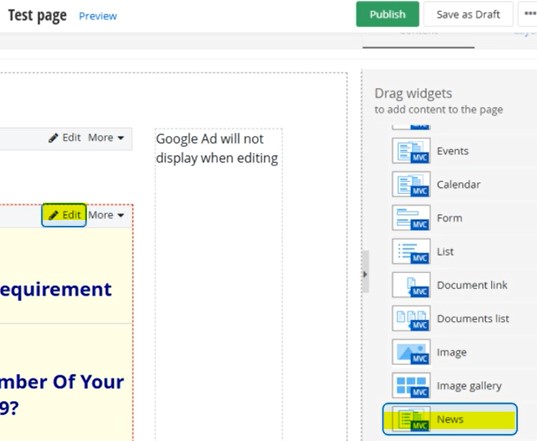
- Click Edit on the News widget.
- In Content Tab:
- Choose news items to display: All, Selected, or Filtered (by categories, tags, topics, dates).
- In List Settings:
- Choose display method: Use Paging, Use Limit, or No Limit.
- Set the number of items per page or total limit.
- Choose sort order (e.g., most recent, A-Z, manual).
- In Single Item Settings:
- Choose display method: auto generated or select an existing page.
- Select a detailed template.
- Save changes.
4. Events Widget
- Click Edit on the Events widget.
- In Content Tab:
- Choose events to display: All, by Date, Upcoming, Current, or Past.
- Filter events (calendar, categories, tags).
- In List Settings:
- Set paging, limit, or no limit.
- Choose sort order (e.g., start date, A-Z, newest first).
- In Single Item Settings:
- Choose auto generated or existing page.
- Select a detailed template.
- Save changes.
5. Documents List Widget
- Click Edit on the Documents List widget.
- In Content Tab:
- Choose documents from: All Libraries, Selected Libraries, or Current Library.
- Filter documents (categories, tags, dates).
- In List Settings:
- Set paging, limit, or no limit.
- Choose sort order (e.g., last modified, A-Z).
- Select list display style: Document List or Document Table.
- In Single Item Settings:
- Choose auto generated or existing page.
- Select a detailed template.
- Save changes.
6. Document Link Widget
- Drag the Document Link widget onto a page.
- Click Edit to configure.
- Select an existing document or upload a new one. Watch this video Sitefinity Configuration of Widgets